
Amazon is one of the world's largest and most popular e-commerce platforms, and for sellers, having well-maintained product listings is essential for success.
With that in mind, this article is a detailed guide on how to create and maintain product listings on Amazon Vendor Central . We highlight the importance of a well-structured listing and provide practical tips to avoid common mistakes.
Index
Importance of a well-maintained product list
A well-maintained product listing on Amazon not only improves product visibility, but also makes it easier for customers to make decisions.
The following are the reasons why it is essential to keep the listings updated and complete:
- Visibility: Optimized listings with accurate and complete descriptions ensure that products are easily found by customers.
- Conversion: Complete product information allows customers to make informed decisions, increasing the conversion rate. Incorrect or incomplete information can result in lost sales.
- Maintainability: Only complete listings can be effectively updated by the seller, making inventory management and change implementation easier.
- Compliance: Amazon requires certain mandatory details to offer items on its platform. If these details are missing, the products may be blocked or removed from the catalog.
How do I create or update a listing in Amazon Vendor Central?
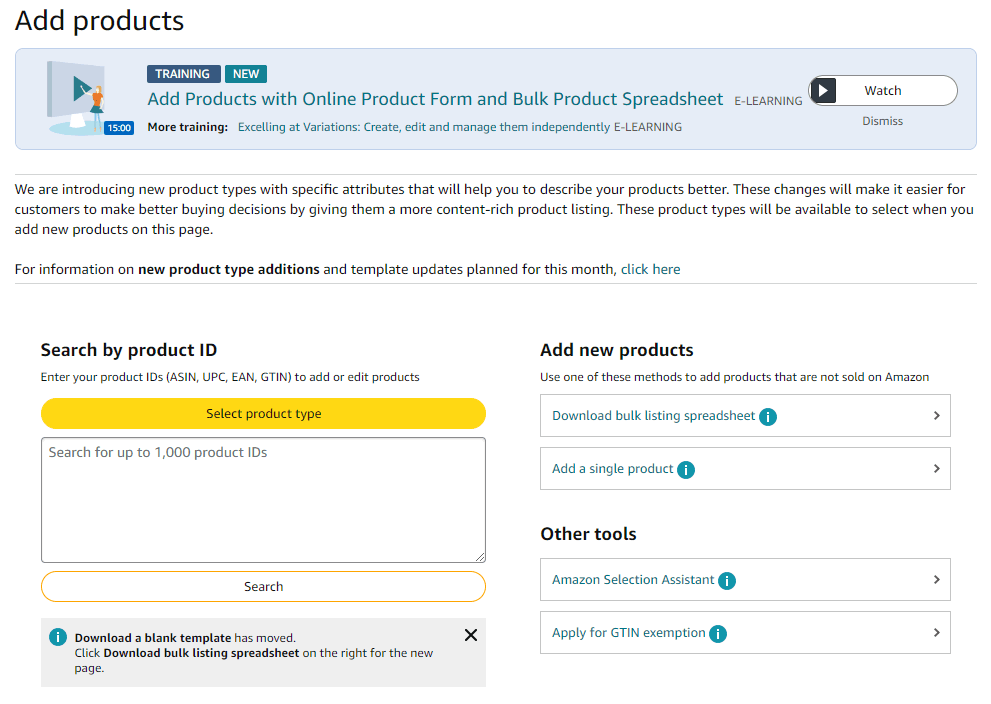
Creating and updating a listing in Amazon Vendor Central can be done in two ways: using the online product form or through Amazon's catalog tables.
Option 1: Add new products via the online product form
To add new products using the online product form, follow these steps:
Step 1. Select the product type: Browse the available product categories and select the one that best fits your item. If no category is a perfect fit, choose the "Other" option or the closest possible match.
Step 2. Enter product identifiers: Enter the product identifiers ( ASIN , UPC, EAN, or GTIN) in the corresponding field. The order in which you enter them is not important, but make sure all identifiers are correct.
Step 3. Fill in the required fields: Provide as much information as possible about the product, including technical details, dimensions, and any other relevant information. This makes it easier for customers to make a purchase decision.
Step 4. Submit shipping information: Complete the shipping details and click "Submit and continue". Make sure all shipping information is accurate to avoid problems with product delivery.
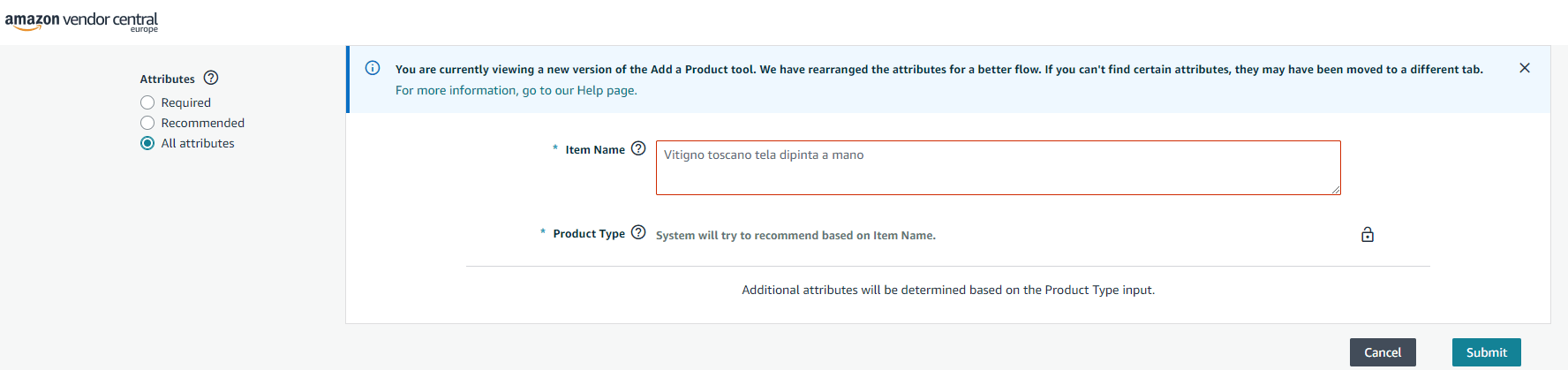
Advantages of adding new products through the online product form
- Suitable for smaller quantities of products.
- Less complex and easier to use.
- Direct entry of product information via the online form.
- Faster process for introducing new products.
Option 2: Add new products via the catalog table
To add new products using the catalog table, follow these steps:
Step 1. Download the catalog table: In your Vendor Central account, download the corresponding catalog table. Make sure that no columns or relevant information are missing.
Step 2. Read the instructions: Before you start filling in the table, read the instructions tab to understand how to complete each field correctly.
Step 3. Fill in the table with product details: Complete the table with all product details, including technical data, dimensions, and other relevant information. Required fields are marked in red and must be completed for the table to be accepted.
Step 4. Upload the completed table: Once you have completed the table, upload it under "Items > Submit multiple products simultaneously". You will receive a reference number that you can use to report any problems or questions to Amazon support.
Advantages of adding new products through the catalog table
- Suitable for large quantities of products.
- Structured entry of product details in a table.
- Comprehensive view of all products in a single document.
- Efficient when many products need to be added simultaneously.
Tips for creating a good product listing
Creating a product listing on Amazon Vendor Central can be challenging due to the amount of information required. But with these tips, your listings will be effective and meet Amazon's requirements.
Accurate and complete details
Providing complete and accurate product details is necessary to avoid issues such as restrictions or listing blocks. Be sure to complete all required fields and stay informed about Amazon's updates regarding information requirements.
Required fields: All fields must be fully completed. Incomplete fields may lead to restrictions or blocking of the listing.
Regular updates: Amazon regularly updates its requirements, so it's important to review and keep your listings updated to comply with the new regulations.
Correct classification: Correctly classify your product to avoid errors in the catalog.
Creating variants
Variants help group similar products that differ in one or two features, such as size or color. This improves the user experience by allowing them to view individual products, reviews, and customer questions all on a single details page.
Variant Structure: Each variant relationship consists of a primary ASIN and several unique secondary ASINs. The primary ASIN does not represent a physical item for direct sale, but rather serves as a collective term under which the various variants are clearly summarized.
Adding variants: You can add variants through the catalog table if the product attributes are identical and they only differ in the variant's design (e.g., size, color). You can also download a special template for creating variants from the Resource Center and then contact Amazon for changes.
Unit Specification
It is important to provide details about "net content", "shape", "number of pieces" and "unit of measure" to ensure a consistent user experience and correct display in search results.
Net content: Depending on the product category, this may refer to weight, volume, or number of pieces.
Shape: If required for your product type, select the appropriate shape from a drop-down list in the table.
Number of pieces: This refers to the smallest sellable unit of a product in a package.
Product image requirements
Images must accurately represent the product and comply with Amazon's guidelines. You can upload single images or multiple images at once, and avoid common mistakes such as non-white backgrounds, cropped products, or blurry images.
Image quality: Images must be of high quality and clearly show the product.
Amazon Guidelines: Follow Amazon's guidelines for images, including the use of white backgrounds and the prohibition of distracting text or graphics.
Product labeling
Each item must have a barcode printed on its exterior. Make sure to assign a unique identifier to each product in the catalog to avoid confusion.
Barcode: Each product must have a unique and visible barcode.
GTIN Exemption: If your product does not have a barcode, you can request an exemption directly from Vendor Central.
Listing monitoring
It's essential to regularly monitor your listings to ensure they stay up-to-date and meet Amazon's requirements. Here are some suggestions for effective monitoring:
Periodic reviews: Perform periodic reviews of your listings to ensure that all information is up-to-date and correct.
Error correction: Use the "Correct your products" feature on the Amazon catalog page to identify and correct errors in unapproved products.
Amazon Updates: Stay up to date on updates and changes to Amazon's policies so that your listings always comply with current regulations.
Conclusion
Maintaining well-structured and complete product listings in Amazon Vendor Central is vital for your product visibility, conversion, and fulfillment. Use the available tools and options to ensure your products are always up-to-date and meet the platform's requirements.
